2027 Medicare Drug Plans · Step-by-step with real screens
How to Compare Medicare Part D Plans Yourself: 2027 Plan Finder Guide
Some carriers no longer let independent agents enroll you in their stand-alone Part D plans. You can still join yourself on Medicare.gov or by phone at 1-800-MEDICARE. Below is every screen, one step at a time.
Before you start, gather these
- Your red, white, and blue Medicare card (you need your Medicare Number to enroll)
- A list of every prescription: exact name, strength, and how many you get each fill
- The name and location of the pharmacy you use
- About 30 minutes, and a pen for your confirmation number
Key dates: Annual Enrollment Period is October 15 through December 7, 2026. Enroll in that window. New coverage starts January 1, 2027. Your old drug plan ends December 31, 2026 (joining a new plan ends the old one for you).
7-step summary
- Open www.medicare.gov/plan-compare, select 2027, and enter your ZIP code and county.
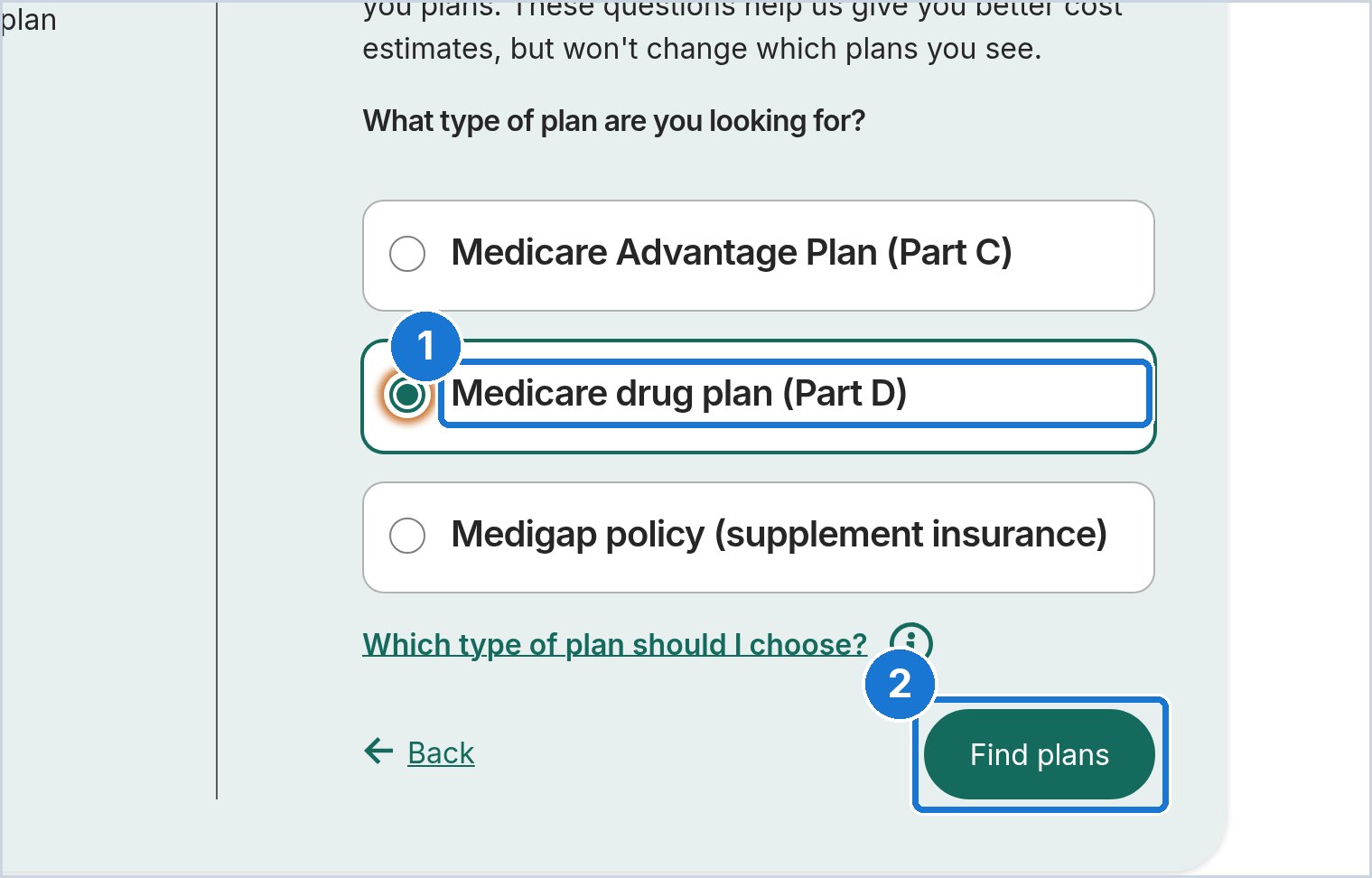
- Choose Medicare drug plan (Part D), then click Find plans.
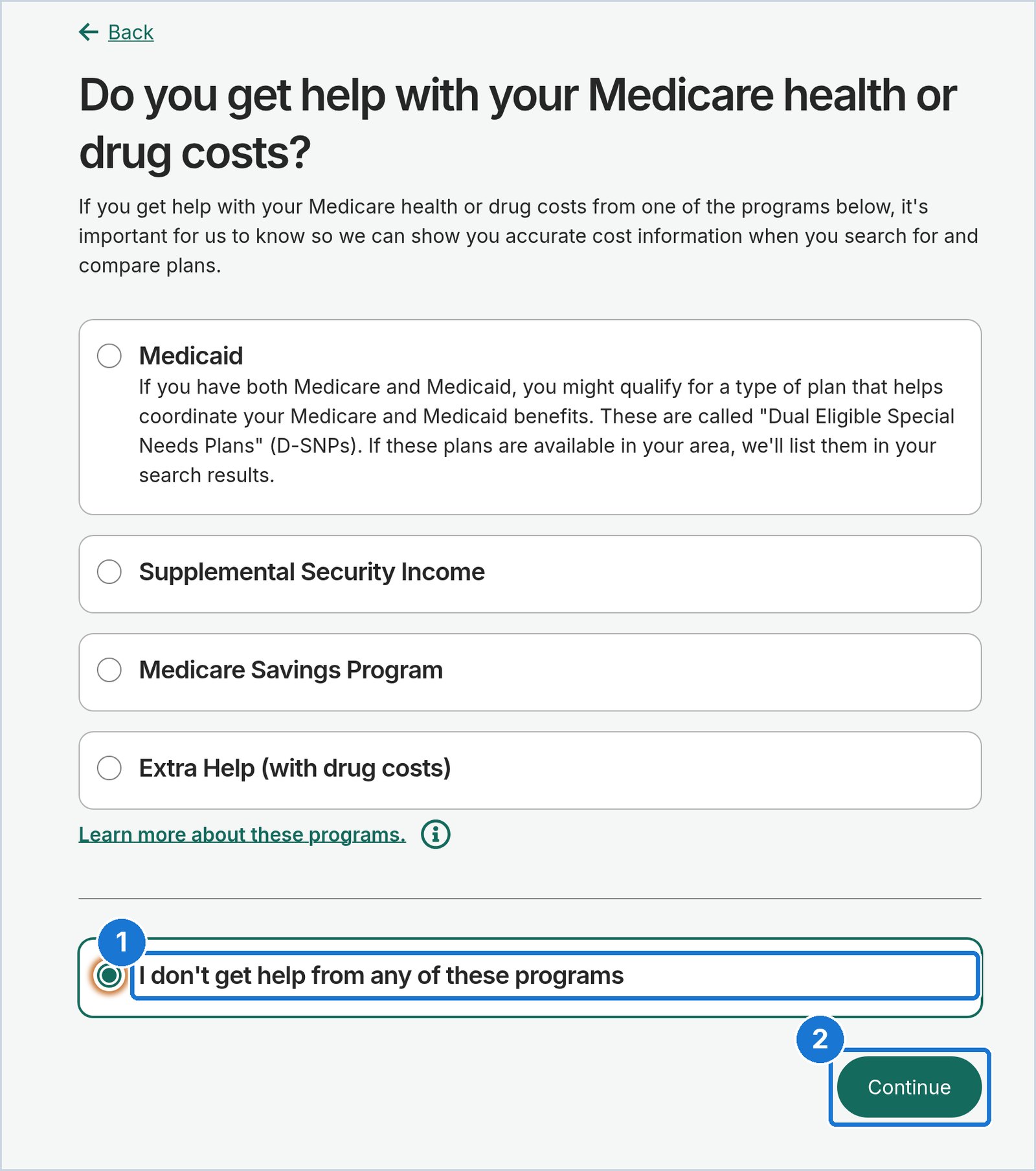
- Answer the help-with-costs question. If none of those programs apply, select that you do not get help from them.
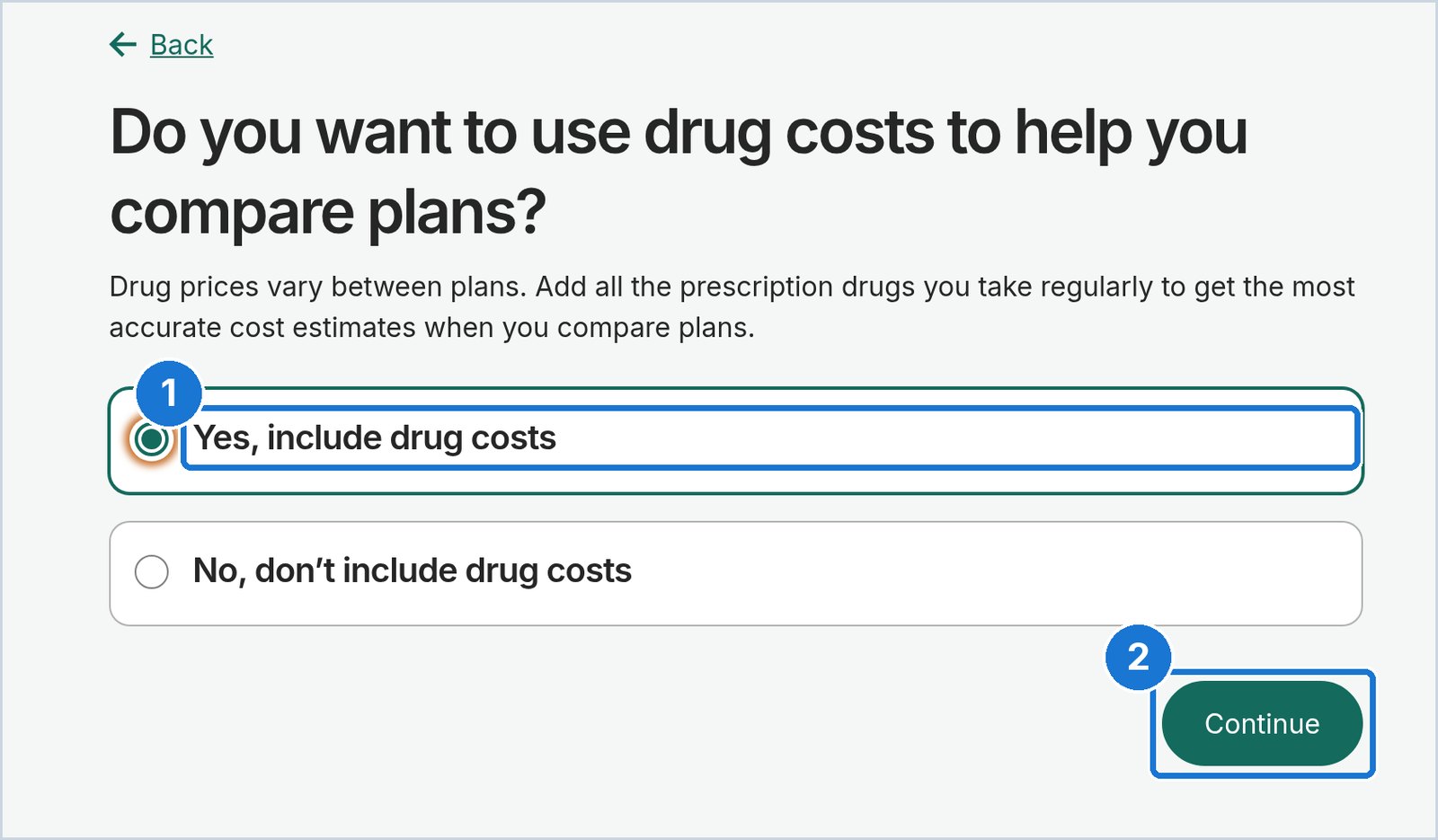
- Choose Yes, include drug costs. Add every prescription with the exact strength, quantity, and how often you refill it.
- Pick the pharmacies you use, including mail order if you want that price in the comparison.
- Confirm the page says you are viewing 2027 plans. Sort by lowest drug plus premium cost and compare the total yearly cost, drug rules, and star rating.
- When you have the plan you want, click Enroll and Join Plan, or call 1-800-MEDICARE. Save your confirmation number.
Every picture below is a real Medicare.gov screen captured Oct. 22, 2026 (ZIP 36830, example drug atorvastatin 20 mg). Blue numbered boxes show where to click or type. A red box marks something you must not miss. Your plans and prices will be different. Examples are not a recommendation of any plan.
Option 1: Use the Medicare.gov Plan Finder
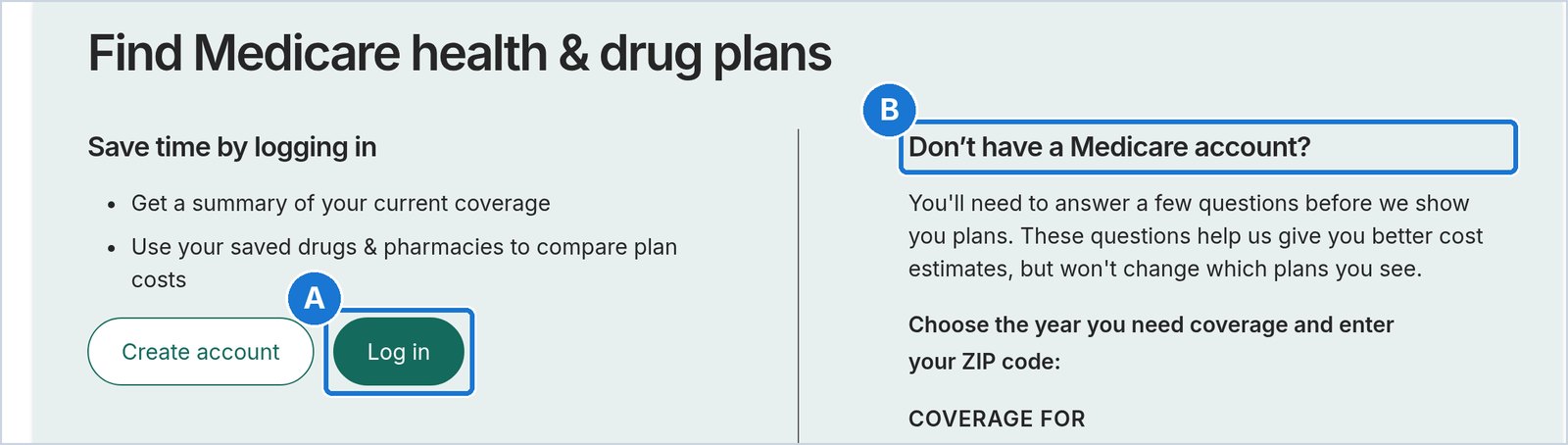
1Go to Medicare.gov/plan-compare
Open your web browser and type www.medicare.gov/plan-compare. A: If you already have a Medicare.gov account, you can click Log in so your saved drugs and pharmacies come with you. B: No account? That is fine. Use the “Don’t have a Medicare account?” side on the right. You do not have to create an account to compare plans.
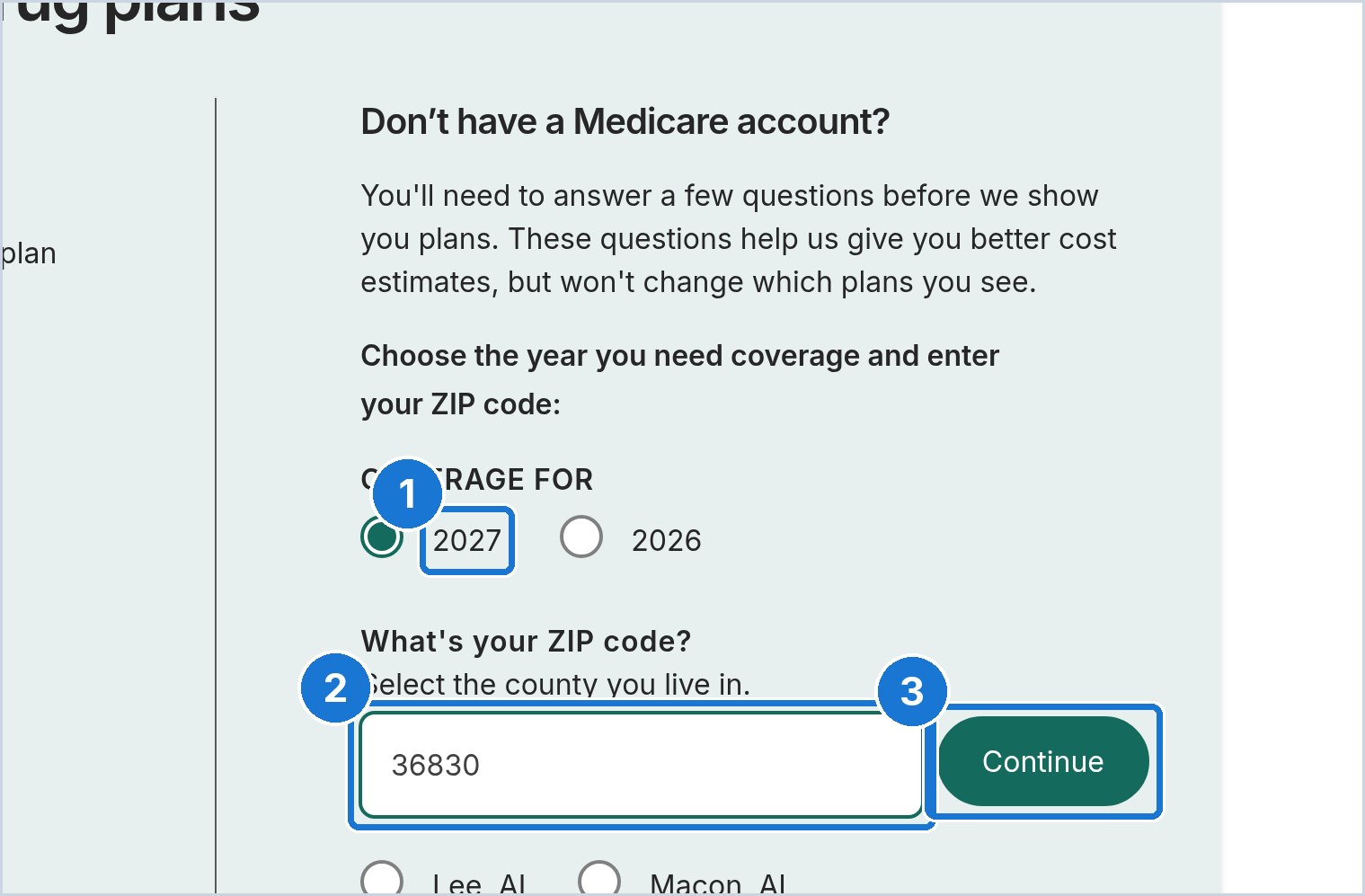
Medicare.gov screen. Example only; your plans and prices will be different. 2Pick 2027 and enter your ZIP code
1 Make sure 2027 is selected under “Coverage for.” 2 Type your 5-digit ZIP code. 3 Click Continue.
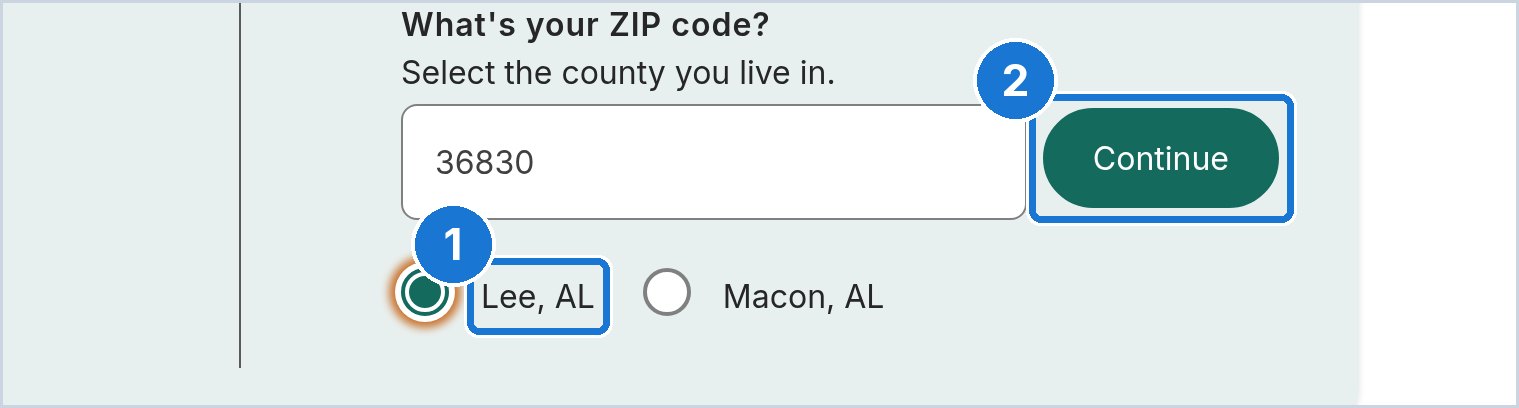
Medicare.gov screen. Example only; your plans and prices will be different. 3Choose your county
If your ZIP code touches more than one county, Medicare.gov asks which one. 1 Click your county (Auburn and Opelika are in Lee County). 2 Click Continue.
Medicare.gov screen. Example only; your plans and prices will be different. 4Choose “Medicare drug plan (Part D)”
1 Click Medicare drug plan (Part D). 2 Click Find plans. If you have a Medicare Supplement, this is the right choice. Do not pick Medicare Advantage by mistake.
Medicare.gov screen. Example only; your plans and prices will be different. 5Answer the “help with costs” question
If you get Medicaid, Extra Help, or one of the other programs listed, click that one. If not, 1 click I don’t get help from any of these programs, then 2 click Continue.
Medicare.gov screen. Example only; your plans and prices will be different. 6Say yes to using drug costs
1 Click Yes, include drug costs. 2 Click Continue. This is how Medicare.gov figures out what your drugs will cost on each plan.
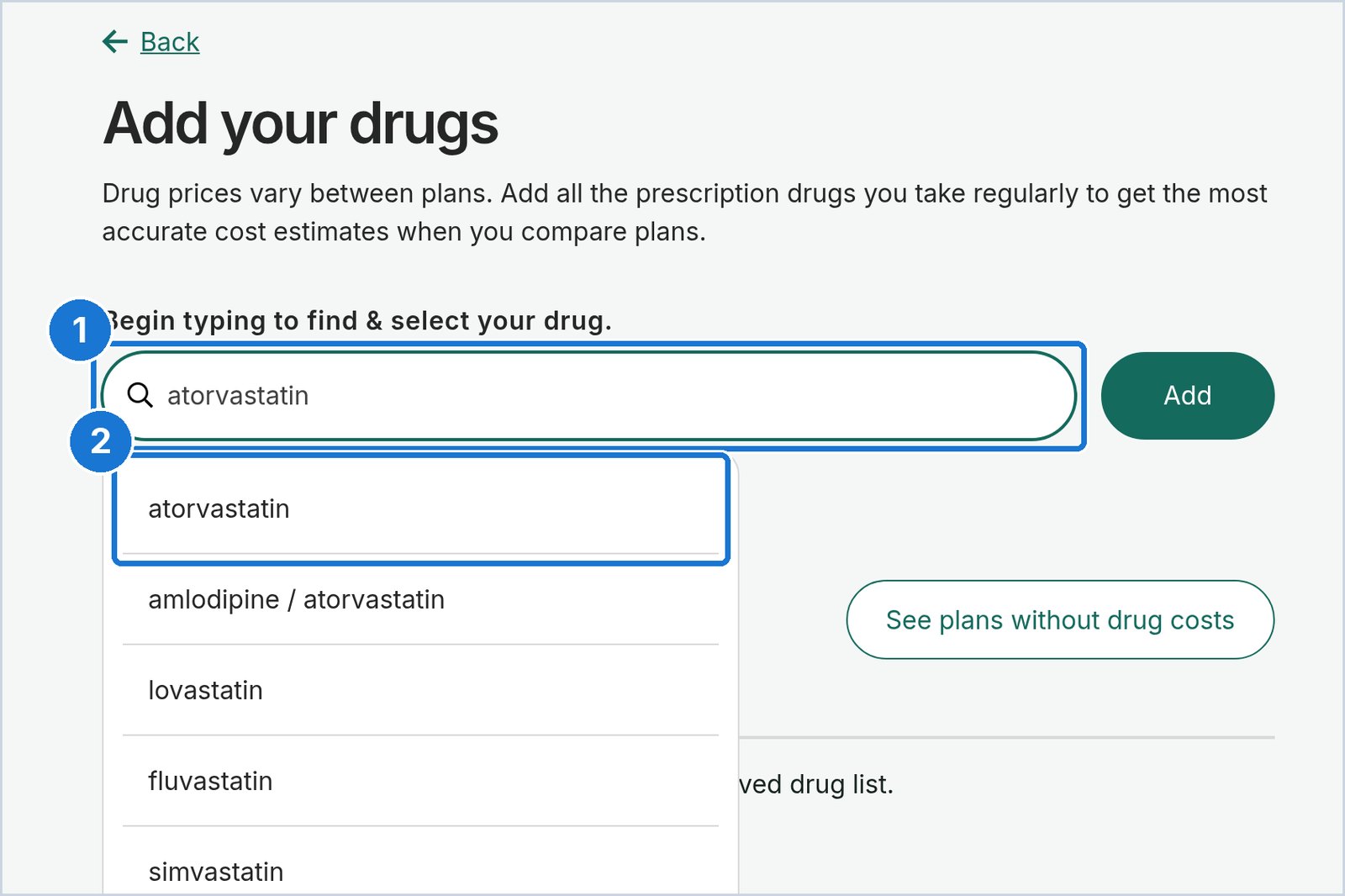
Medicare.gov screen. Example only; your plans and prices will be different. 7Type your first drug and pick the exact match
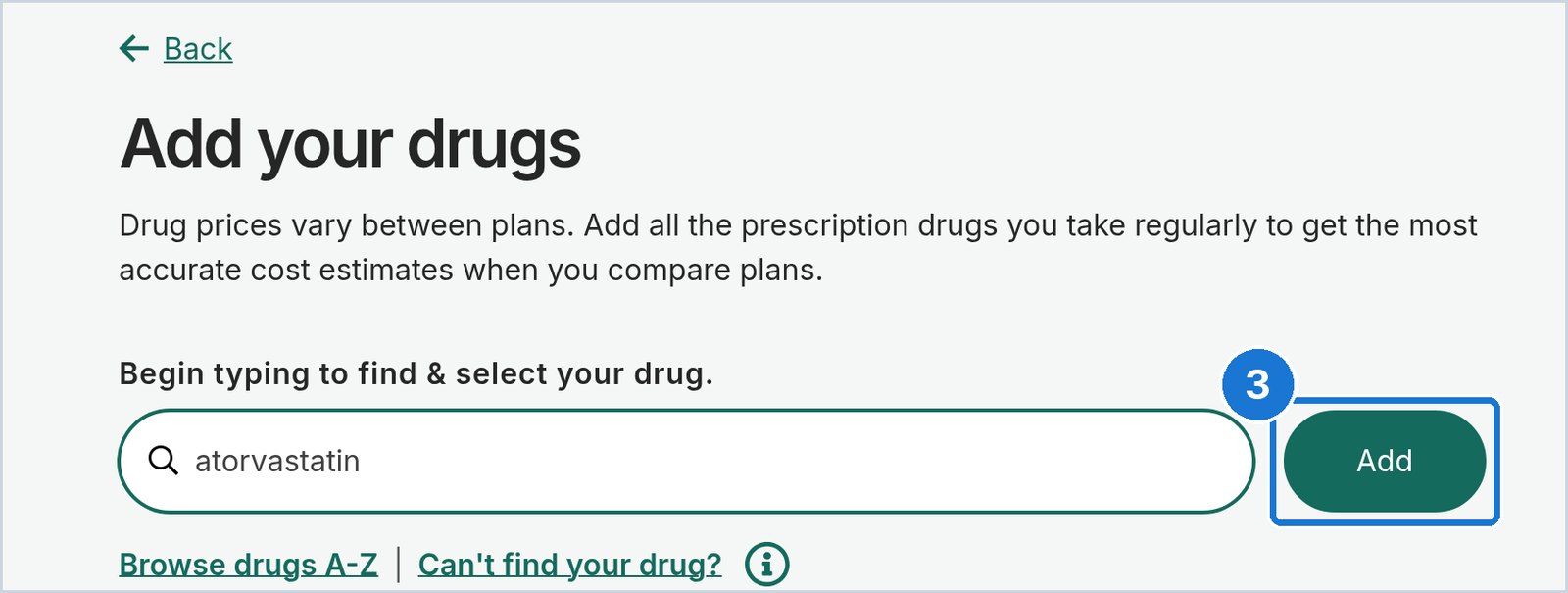
1 Click in the search box and start typing the drug name from your bottle. 2 Click the exact name in the list that drops down. Check the spelling against your bottle.
Medicare.gov screen. Example only; your plans and prices will be different. 8Click “Add”
3 After the drug name shows in the box, click Add.
Medicare.gov screen. Example only; your plans and prices will be different. 9Enter the strength, quantity, and how often
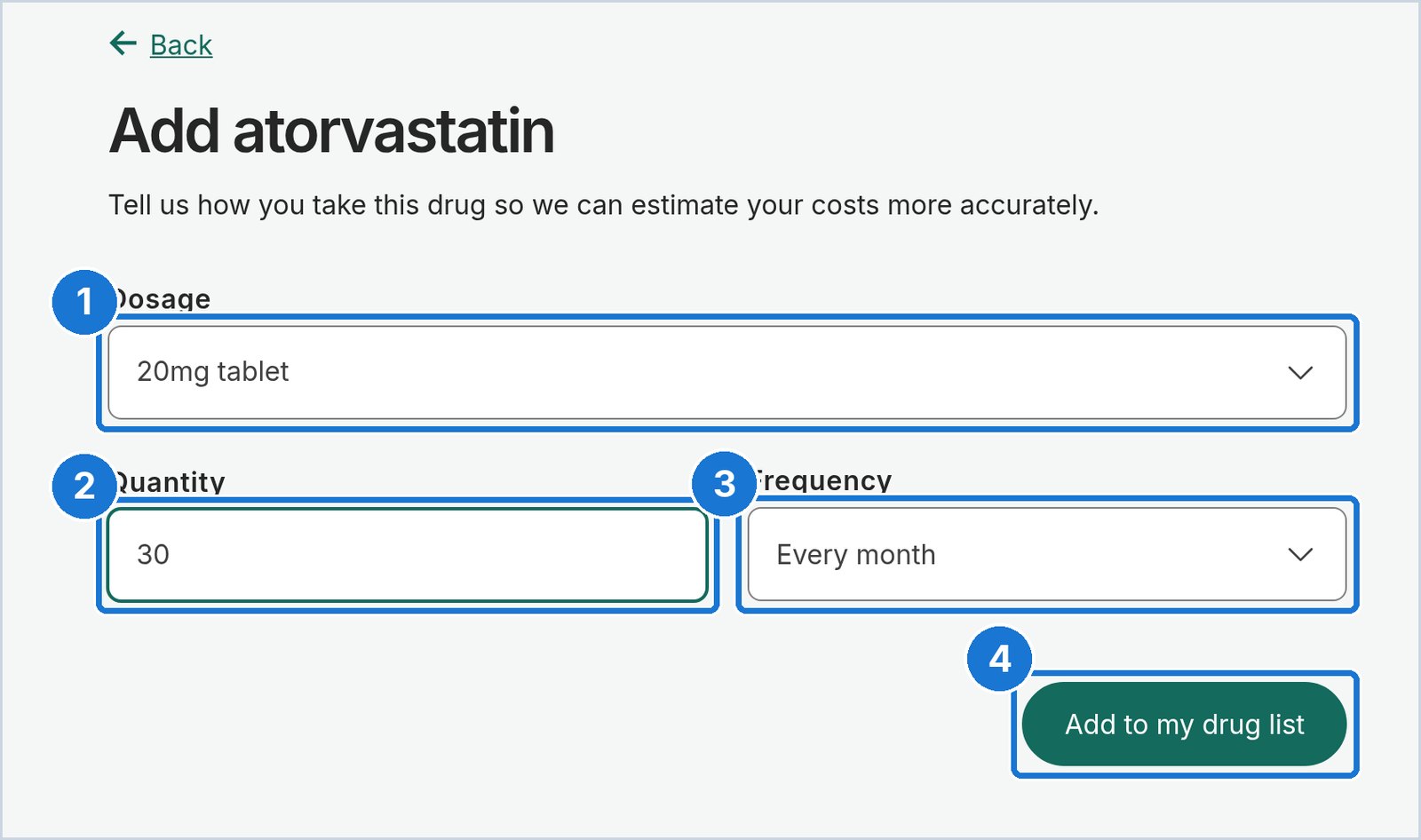
1 Pick the dosage (strength) on your label, such as 20mg tablet. 2 Enter the quantity you get each fill, such as 30. 3 Pick how often you refill it. 4 Click Add to my drug list.
Medicare.gov screen. Example only; your plans and prices will be different. 10Add every drug, then continue
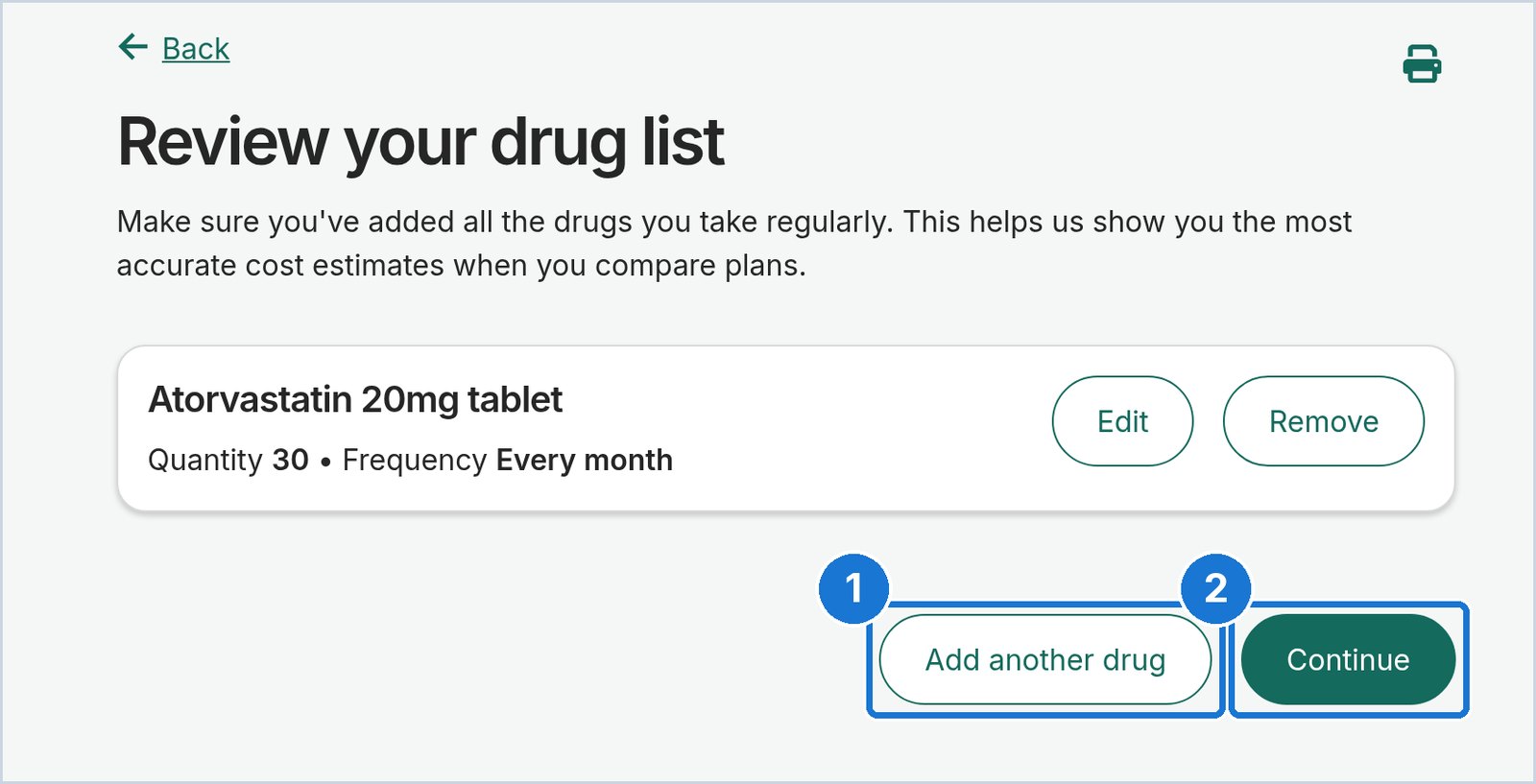
1 Click Add another drug and repeat the last three steps for each prescription you take. 2 When every drug is on the list, click Continue.
Medicare.gov screen. Example only; your plans and prices will be different. 11Pick your pharmacies
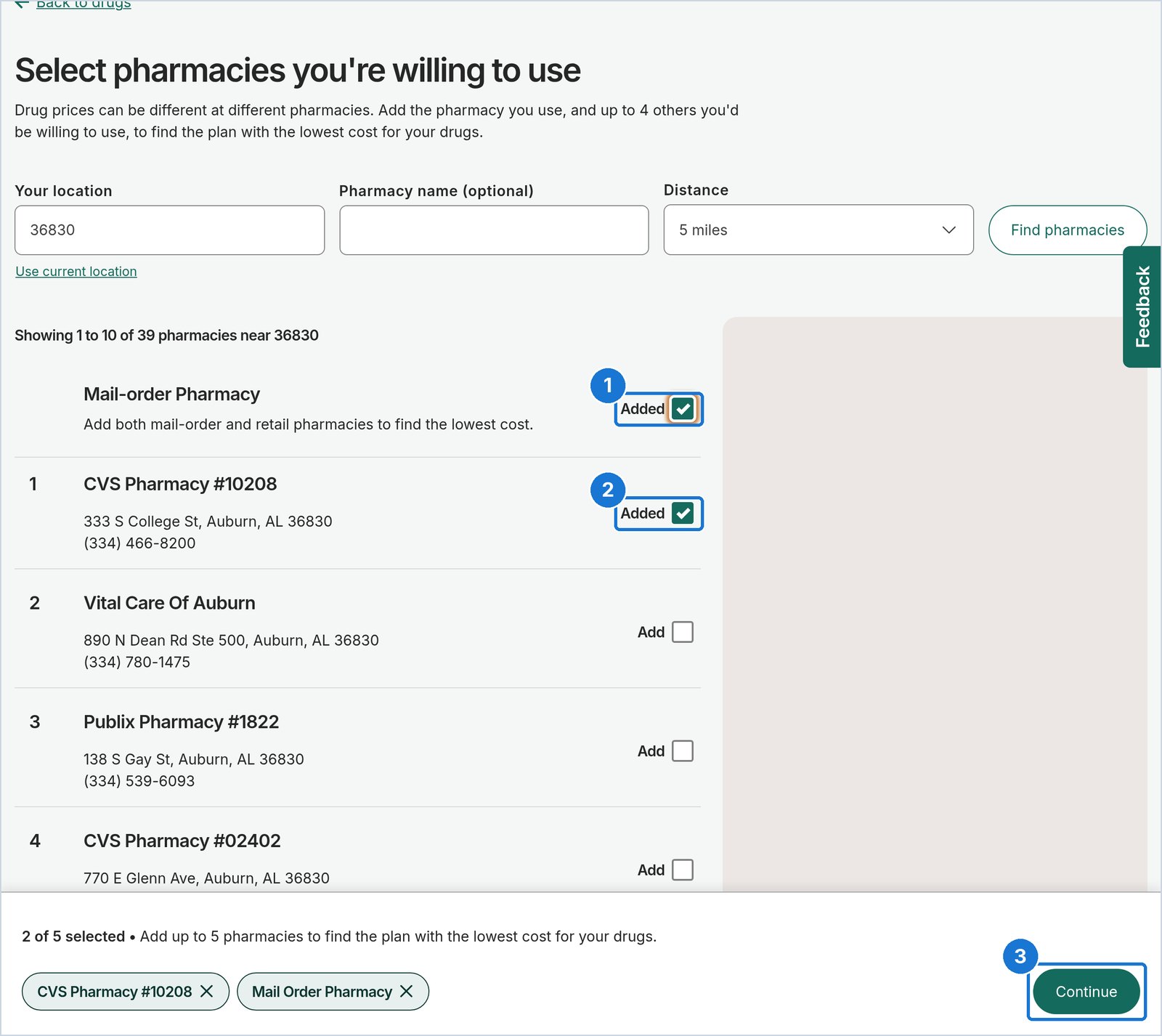
1 Check the box for Mail-order Pharmacy. It is often a lower-cost option to compare. 2 Check the box next to the pharmacy you use now. You can pick up to 5. 3 Click Continue at the bottom of the screen.
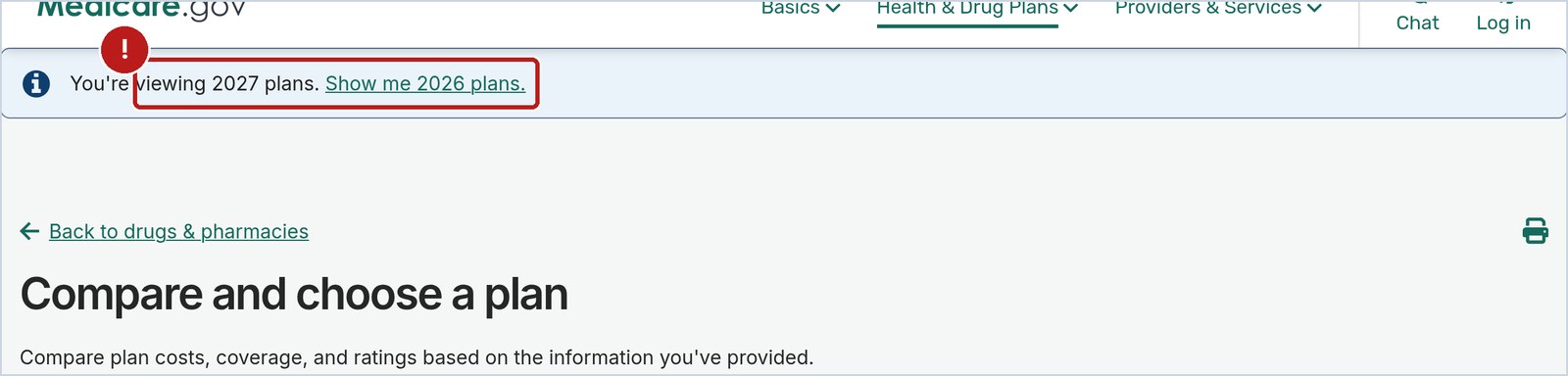
Medicare.gov screen. Example only; your plans and prices will be different. 12Do not miss: make sure you are looking at 2027 plans
At the top of the results, the blue bar should say “You’re viewing 2027 plans.” Do not click “Show me 2026 plans.” Those are this year’s plans, not next year’s.
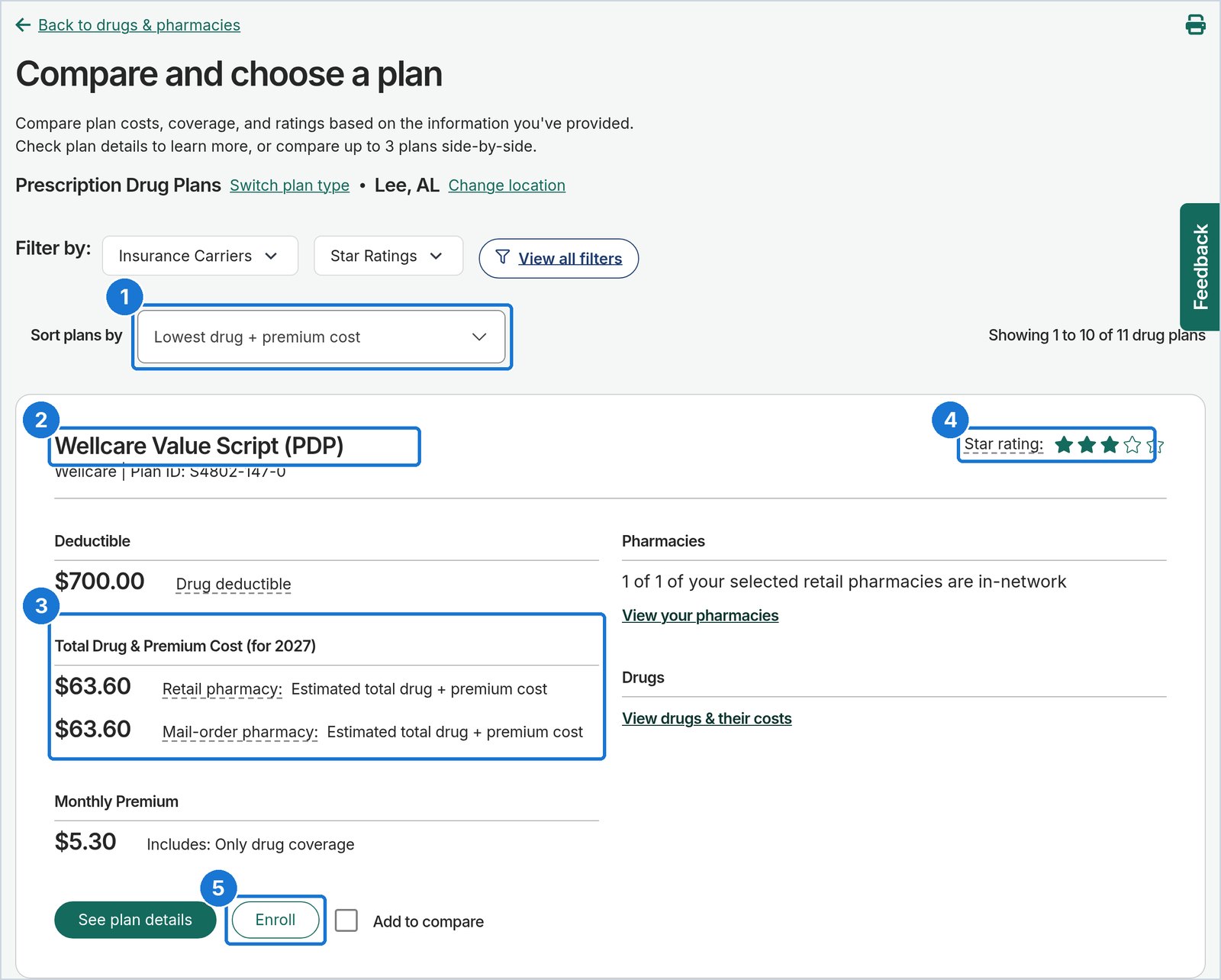
Medicare.gov screen. Example only; your plans and prices will be different. 13Compare the total yearly cost, not just the premium
1 Leave the sort set to Lowest drug + premium cost. 2 Check that the plan name ends in (PDP), which means drug plan. 3 Look at Total Drug & Premium Cost (for 2027). That is your estimate for the whole year. 4 Note the star rating. 5 The Enroll button is here too, but check the plan details first (next steps).
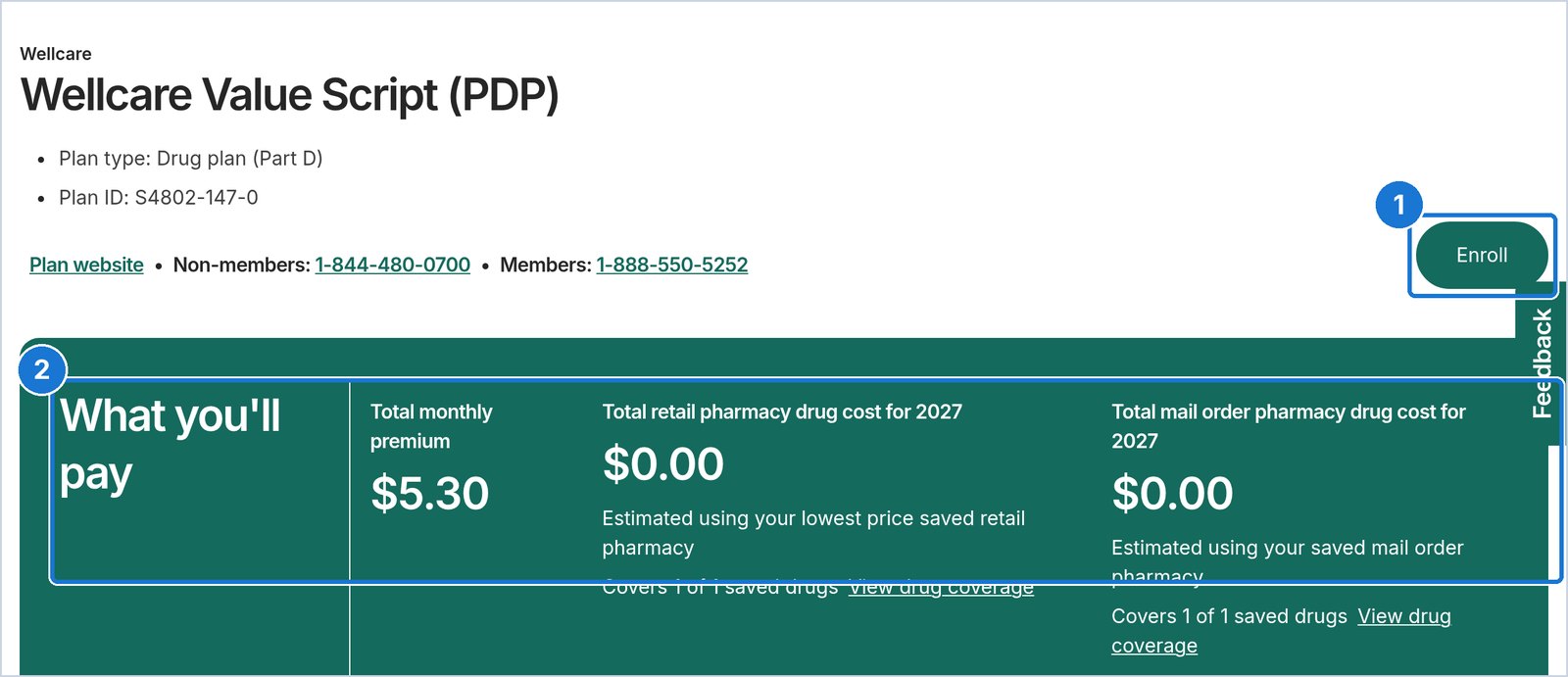
Medicare.gov screen. Example only; your plans and prices will be different. 14Open the plan details
Click See plan details on a plan you like. 2 What you’ll pay shows the monthly premium and your estimated drug costs for 2027. 1 The Enroll button is at the top right when you are ready.
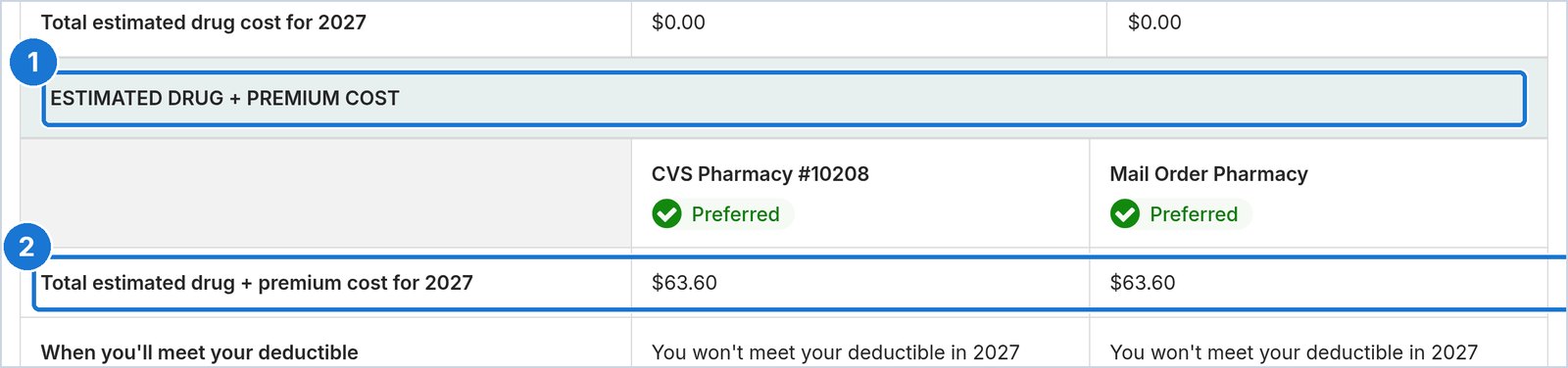
Medicare.gov screen. Example only; your plans and prices will be different. 15Check the estimated drug + premium cost
Scroll down to Drug Coverage. 1 Find Estimated Drug + Premium Cost. 2 The total for 2027 is shown for each pharmacy you picked. Compare this number between plans.
Medicare.gov screen. Example only; your plans and prices will be different. 16Check for drug restrictions
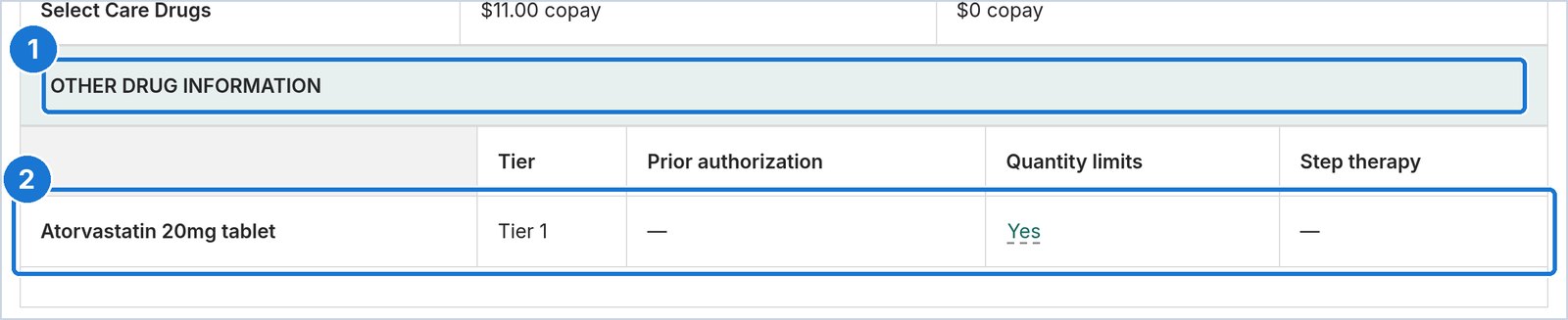
Click View more drug coverage, then scroll to 1 Other Drug Information. 2 For each drug, look for a “Yes” under Prior authorization, Quantity limits, or Step therapy. A “Yes” means the plan has extra rules for that drug.
Medicare.gov screen. Example only; your plans and prices will be different. 17Check the star rating
Scroll to Star Ratings. 1 The Overall star rating (1 to 5 stars) is Medicare’s quality score for the plan.

Medicare.gov screen. Example only; your plans and prices will be different. 18Enroll: click “Join Plan”
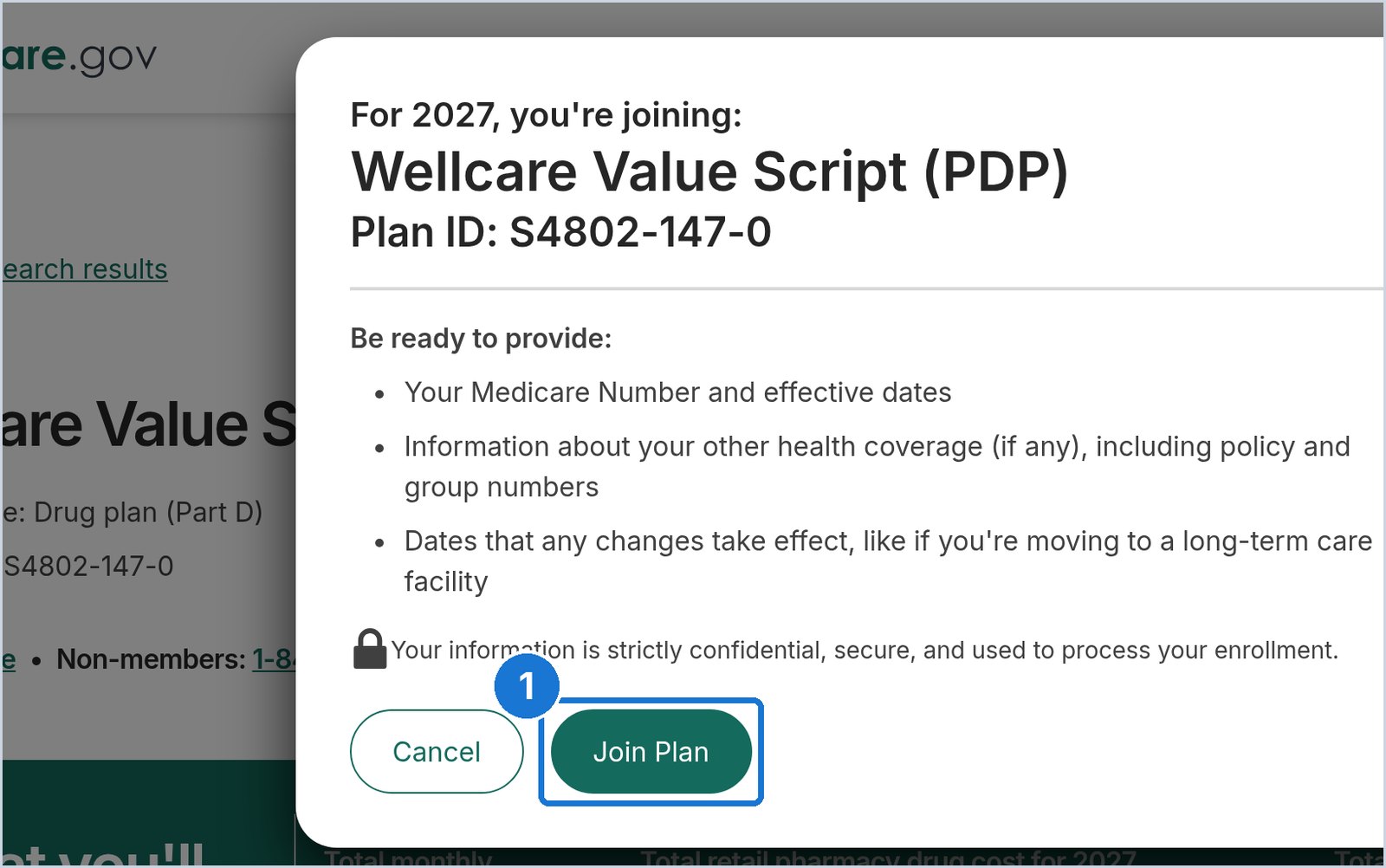
When you have chosen a plan, click Enroll. A box opens showing the plan name and plan ID for 2027. Make sure it is the plan you want, then 1 click Join Plan.
Medicare.gov screen. Example only; your plans and prices will be different. 19Fill in the application screens
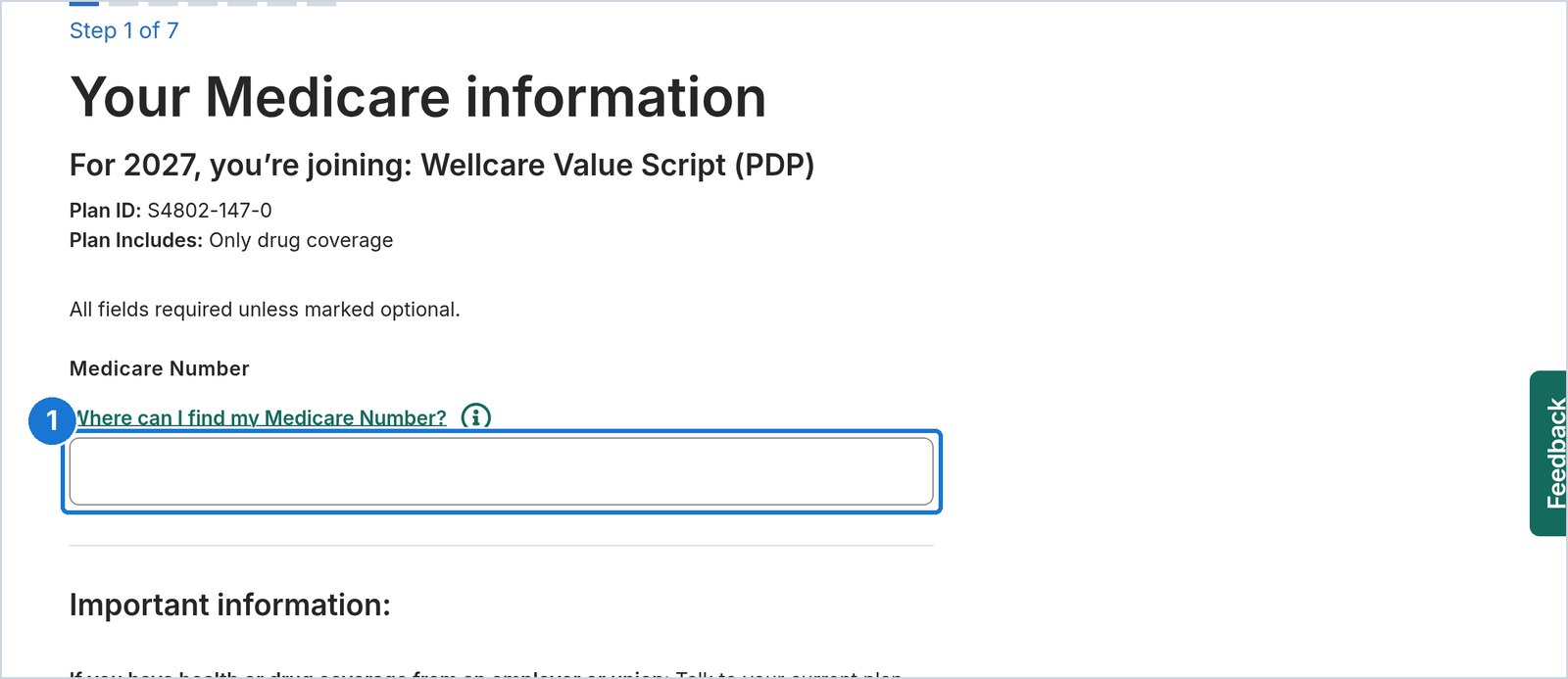
Medicare.gov walks you through a short application (about 7 screens). 1 Start by typing the Medicare Number from your red, white, and blue card. Then follow each screen: your name, date of birth, address, how to pay your premium, and the plan terms. Review everything and submit.
Medicare.gov screen. Example only; your plans and prices will be different. 20Save your confirmation number
After you submit, Medicare.gov shows a confirmation number. Write it down, print the page, or take a picture of it. Your new plan will mail you a welcome letter and member card.
If your current plan still fits: if it continues in 2027 and still comes out lowest for your drugs, it usually renews on its own. Check your plan’s Annual Notice of Change letter to be sure.
Option 2: Call 1-800-MEDICARE
Prefer the phone? Medicare’s representatives can walk you through comparing drug plans and can enroll you over the phone.
1-800-MEDICARE (1-800-633-4227)
TTY: 1-877-486-2048 · 24 hours a day, 7 days a week (except some federal holidays)
Have these ready: your Medicare card, your medication list with each drug’s name, strength, and how often you take it, your pharmacy name, and pen and paper for your confirmation number.
Good to know
- You do not need to cancel your old drug plan. Joining a new one ends the old one.
- If you are in a Medicare Advantage plan, joining a stand-alone drug plan can end your Advantage plan. Talk with someone first.
- After you enroll, you may get sales calls about switching to a different kind of plan. You do not have to take those calls.
Questions about comparing Part D plans
How do I compare Medicare Part D plans?
Use the Medicare.gov Plan Finder. Add each drug with the exact dose, choose your pharmacy, and compare plans by total yearly cost.
When can I change my Part D plan?
During AEP, October 15 through December 7. The new coverage is effective January 1.
Can I enroll in a Part D plan without an agent?
Yes. Enroll on Medicare.gov or by phone at 1-800-MEDICARE (TTY 1-877-486-2048), 24 hours a day, 7 days a week.
What should I have ready?
Your Medicare card, a drug list with doses, and your pharmacy.
Can Dalton Insurance Agency help me review my options?
Yes. Call (334) 489-3624 or book a review at https://link.daltoninsurance.biz/widget/booking/AM8xl5y2iebhNOMwAM2C.
Want a second set of eyes?
Dalton Insurance Agency can review your options. Call (334) 489-3624.
We do not offer every plan available in your area. Please contact Medicare.gov, 1-800-MEDICARE, or your local State Health Insurance Program (SHIP) to get information on all of your options. Alabama SHIP (Alabama Department of Senior Services): 1-800-243-5463. Dalton Insurance Agency is not connected with or endorsed by the U.S. government or the federal Medicare program. Screens shown are from Medicare.gov and are used for instruction only. This page is general education, not a recommendation of any specific plan.